
🔧 Call page: Test call & troubleshooting steps
Most in-browser video call issues can be resolved by following these steps. To complete the test call, make sure you’re logged into your account. There, you can test your microphone, audio, and video. By opening the settings for each icon, you can play sounds, record your voice, and make sure you can hear yourself clearly.
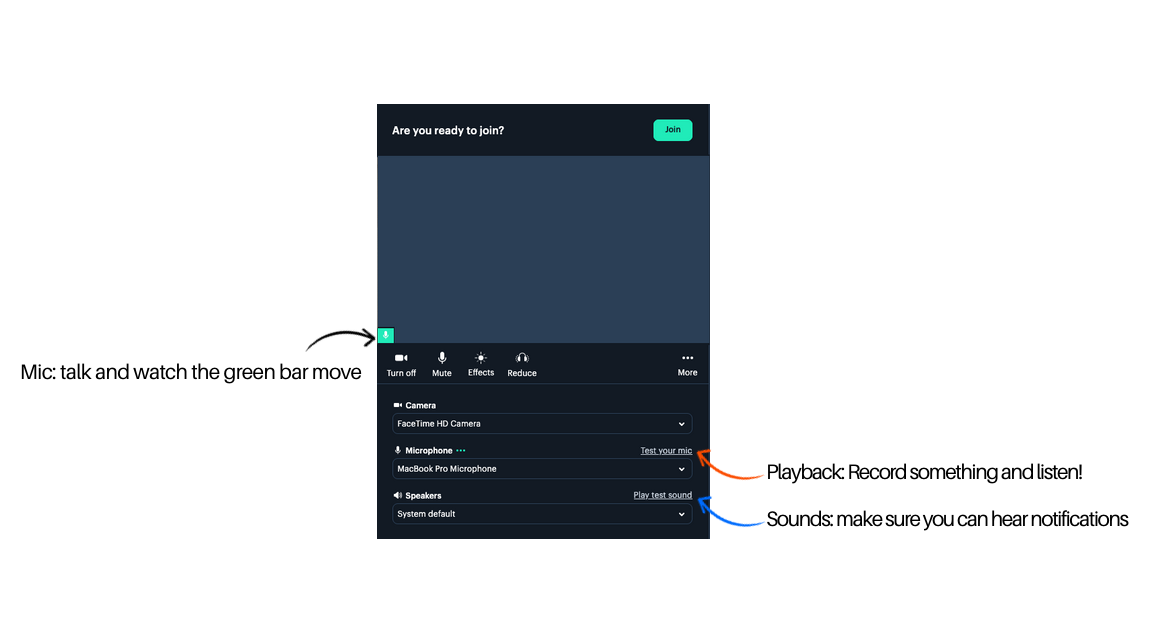
Before joining the call or completing a test call, you can:
- Mic: talk and watch the green bar move.
- Playback: Record something and listen!.
- Sounds: make sure you can hear notifications.
This way, you'll know everything’s ready before the call!
💡 Tips
- Reload the Page. Sometimes a simple refresh fixes the problem.
- Close and Reopen Your Browser. This helps reset temporary issues.
- Use Incognito or Private Mode. This turns off extensions (like ad blockers) that may block your camera or microphone.
- Check Browser Permissions: Ensure your browser has access to your camera and microphone.
- Reset Camera and Microphone Permissions. If you clicked “Block” before, the browser may not ask again.
- Click the 🔒 lock icon next to the website address
- Allow Camera and Microphone
- Reload the page
- Update Your Browser: Ensure you're using the latest version for optimal performance.
- Try a Different Browser or Device. For best results, use Google Chrome. You can also try Safari or Firefox, or use another device.
- Restart Your Computer. This can fix hidden problems and refresh settings.
🛠️ Additional Tips
If you’re having trouble accessing or using our Website, it’s usually because something on your computer, browser, or network is blocking it 🛠️. Common examples include:
- Only seeing the “My Credits” button.
- Some buttons within the widget not appearing at all.
You can also try the following instructions:
- Clear Cookies & Cache: Old data can cause issues. Clear your browser’s cookies and cache before joining a call.
- Avoid VPNs: VPNs can sometimes cause latency or connection issues, so it’s best to disconnect if possible.
- Whitelist Required Domains & Ad Blockers: Make sure the following domains are allowed in your browser/network and that any ad blockers are disabled or whitelisted:
- https://talkabroad.com
- https://app.talkabroad.com
- https://interactionsoftware.io
- https://interactionsoftware.daily.co
-
https://interaction-software-dailyco-videos.s3.amazonaws.com
Check the JavaScript Console (if problems persist)
If issues continue, open your browser’s console to check for errors:
- Chrome: Three-dot menu → More Tools → Developer Tools
- Firefox: Tools → Web Developer → Web Console
- Safari: Preferences → Advanced → Show Develop menu → Develop → Show JavaScript Console
- Repeat your steps (refresh the page, try opening again the call page and see if any JS errors pop up. If you see something there), take a screenshot and send it our way! support@talkabroad.com
Looking for more help? Browse our full Student Help Center here!